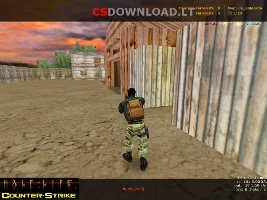
CS 1.6 for Windows 8 and 8.1

When Windows 8 and 8.1 came out, many players found that CS 1.6 would not start: black screen, crash on launch or missing DLL errors. The reason was the old hl.exe and engine files that were written for Windows XP. Newer CS 1.6 builds fixed these files, so the game works on Windows 8 and 8.1 without problems.
Our CS 1.6 setup on this page is tested on Windows 8.1, 10 and 11 – you just install it and play.
How to install CS 1.6 on Windows 8/8.1
- Click Download Setup below.
- Run the setup. If SmartScreen appears, click More info → Run anyway.
- Install to
C:\Games\Counter-Strike 1.6(not to Program Files). - Start the game from the desktop shortcut.
CS 1.6 not starting on Windows 8? Try this
- Add
-glto the shortcut Target to start in OpenGL. - Right-click
hl.exe→ Properties → Compatibility → Windows 7. - Install the latest Microsoft Visual C++ Redistributable (x86) and video card drivers.
- Add the game folder to antivirus exceptions.
All errors explained: CS 1.6 errors and fixes.
Time to upgrade Windows?
Microsoft ended support for Windows 8.1 in January 2023, so it no longer gets security updates. CS 1.6 still runs on it, but if your PC allows, Windows 10 or 11 is safer. See CS 1.6 for Windows 10 and CS 1.6 for Windows 11.
Best settings for older Windows 8 PCs
Many computers that came with Windows 8 are now ten years old. Therefore, it helps to lower a few settings: choose 1024×768 or 1280×720 resolution, keep fps_max 100, turn off V-Sync and close other programs while playing. In addition, use the High performance power plan on laptops. As a result, even an old machine can run the game smoothly online. More tips: CS 1.6 for low-end PC and CS 1.6 FPS boost.
What you download here
- Counter-Strike 1.6 with original files, protocol 48, bots and a working server list.
- No ads, no slowhack binds. Windows 11, 10, 8.1 and 7.